Refund Requests
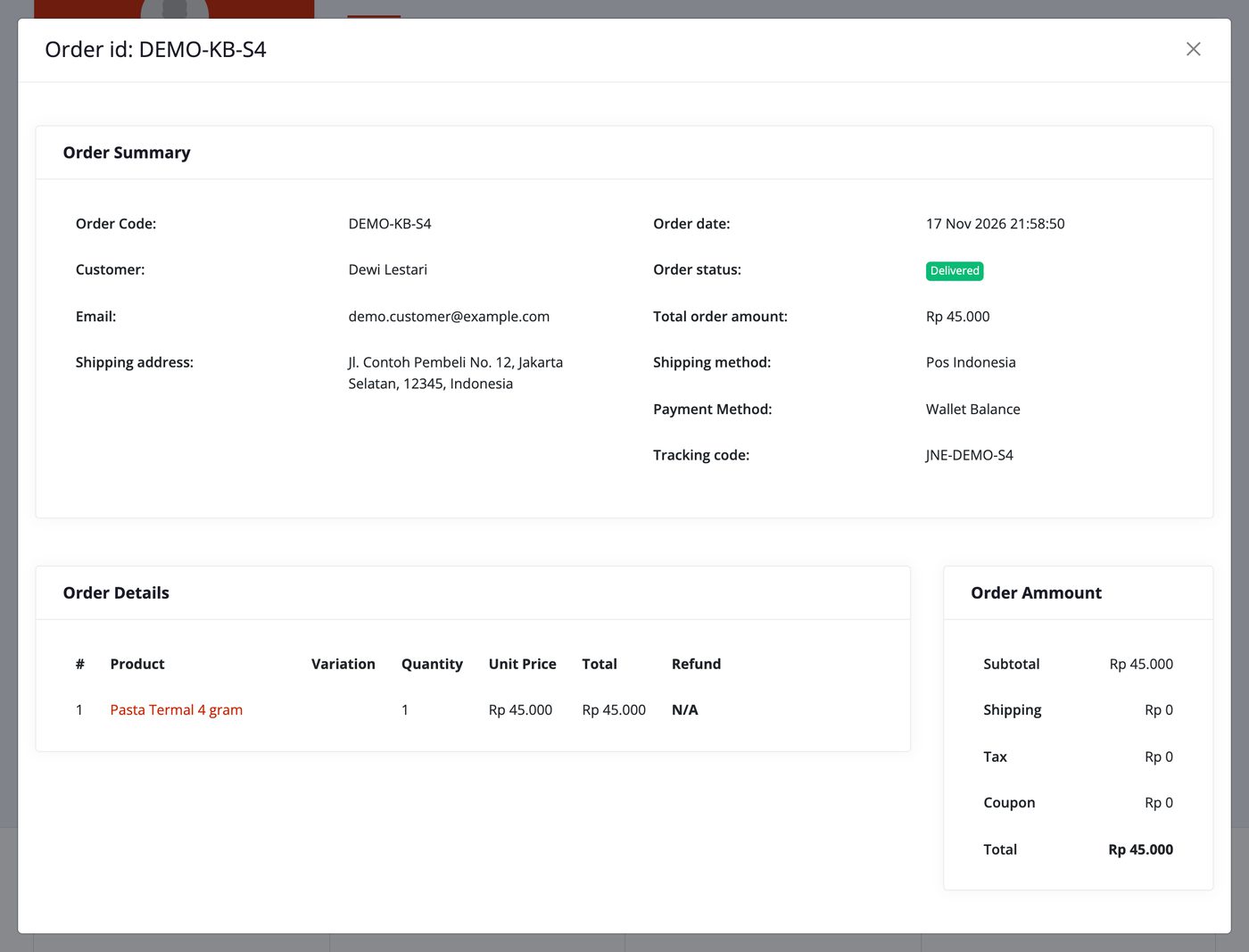
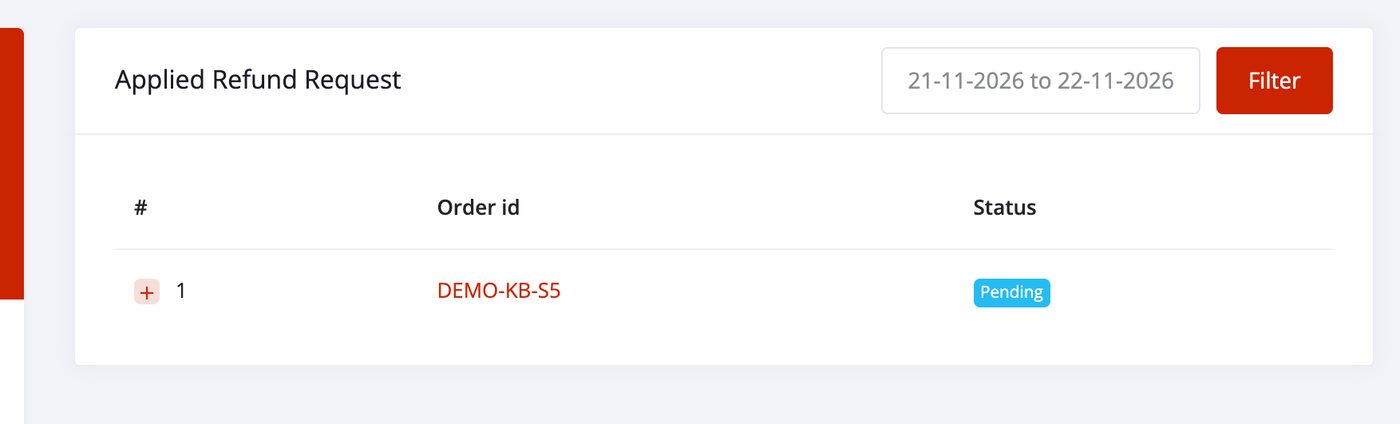
Refunds are requested per item from Order Details and followed in the Sent Refund Request menu.
1. Conditions
- The product is refundable, and the item is Paid and Delivered.
- You have not confirmed the order as received, and the item has no previous refund request.
- Still within the refund period set by the admin, counted from the order date.
2. Requesting
- Open Order Details and click Send in the Refund column of the item.
- Fill in the Refund Reason and attach Photo Proof (up to 3 photos).
- Click Send Request.
3. Statuses and disputes
On Raise a Dispute, explain the problem; the admin joins the conversation to decide. A refund covers one whole item.
| Status | Meaning |
|---|---|
| Pending | Waiting for the seller/admin |
| Seller rejected | The seller rejected it — you can click Dispute |
| Approved | The refund was approved; the admin sends the money to your wallet |
| Rejected | Rejected, with a reason |
4. In the app
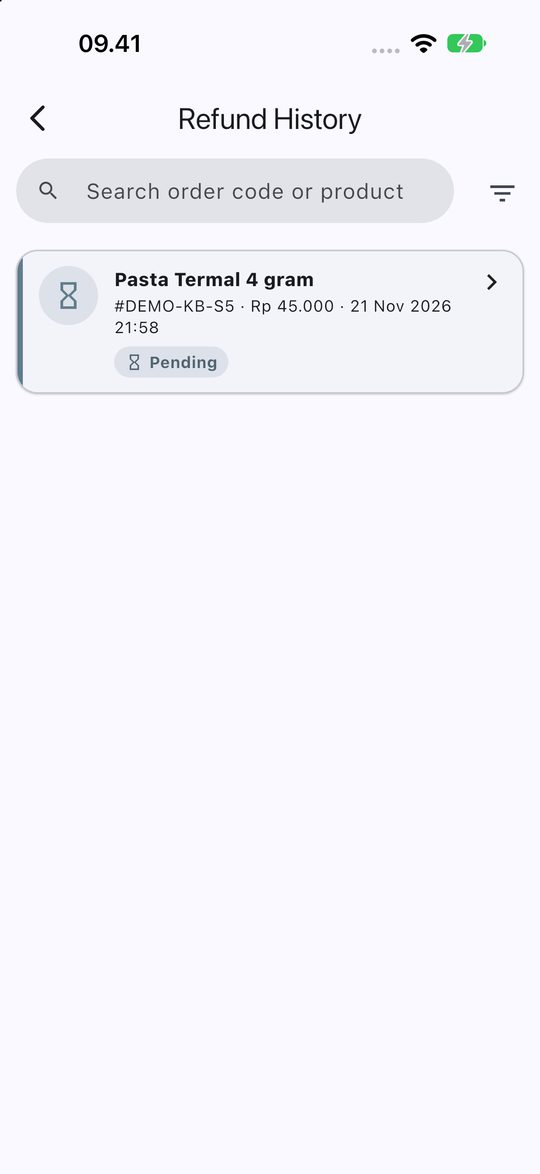
☰ › Refund History lists your refund requests and their status (e.g. Pending).